 Mon–Sat 9:00 AM – 7:00 PM / Sat 9:00 AM – 4 PM
 Sales@part4cells.com
 832-489-2386


How to Request an RMA Label on Parts4Cells – A Step-by-Step Guide for Smooth Product Returns

At Parts4Cells, we understand that returns are part of doing business—whether you're sending back a defective product, exchanging an item, or submitting an LCD for buyback. To make things simple, we've developed a seamless RMA (Return Merchandise Authorization) process that’s built directly into your account dashboard.
In this blog post, we’ll walk you through the complete process of requesting an RMA label, from logging in to managing shipping and tracking your returns. Whether you're a first-time user or a returning customer, this guide will help you confidently handle your product returns in minutes.
Step 1: Create an Account or Sign In
Before you can request a return label, you’ll need to have an account with Parts4Cells.
Visit: Parts4Cells.com
If you already have an account, click Sign In in the top-right corner. If not, click Create Account and complete your registration. It takes just a few minutes and gives you access to order history, RMA status, and shipping tools.
Once logged in, your dashboard will look something like this:
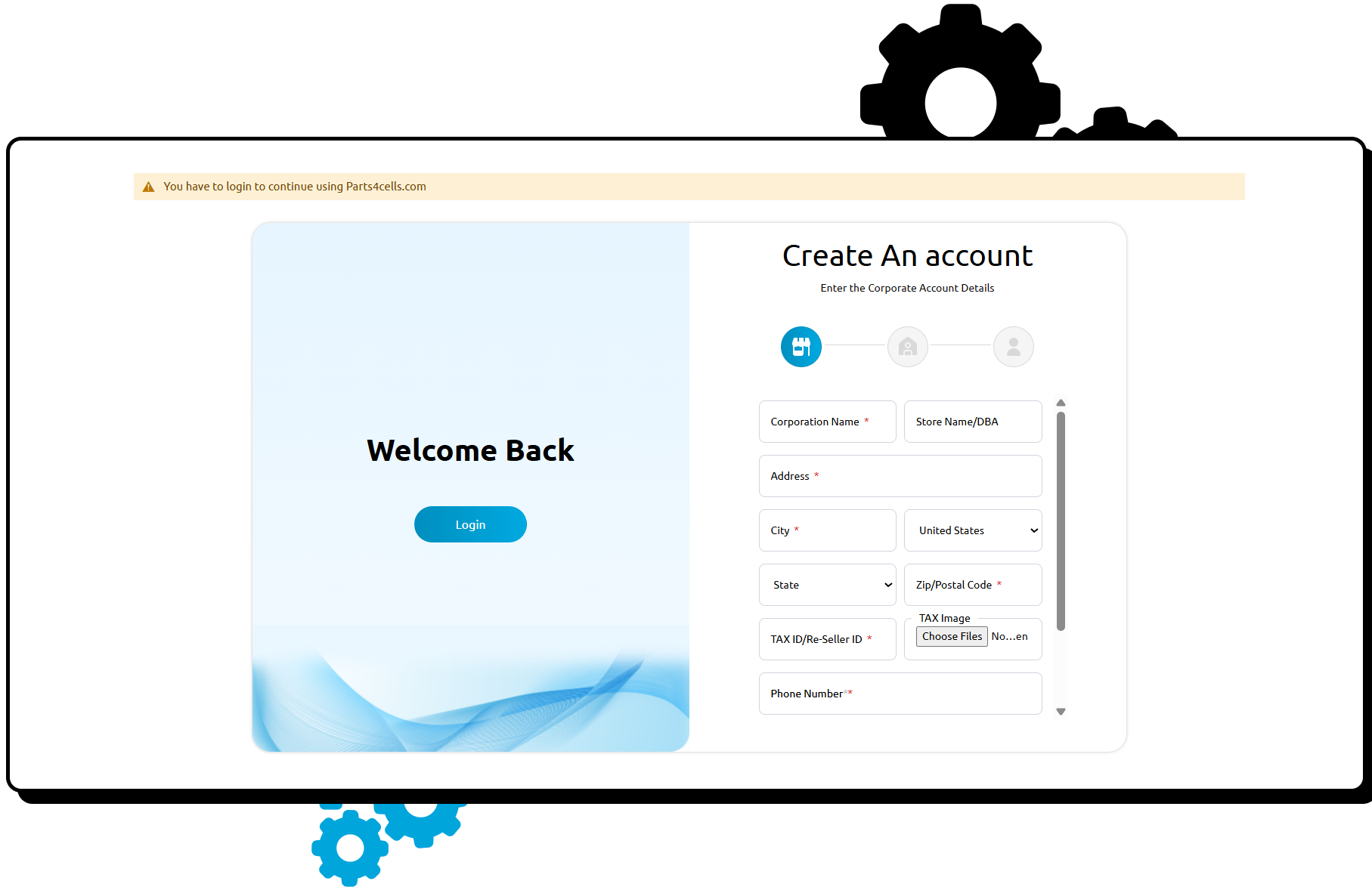
Navigate to the sidebar and go to:
Services > Product Returns/RMA
This will take you to the Returns Management section, where you'll see two main tools:
- "Start Product Returns"
- "RMA Reports"

These are the two tables you'll be working with throughout the return process.
Step 2: Add the Item You Want to Return
At the top of the page, you’ll see the “Add Item to Start Product Returns” section. Here’s how to fill out your return details:
- Search Product by Name or SKU
- Start typing the product name (e.g., “Brilliance iPhone 16 Pro Max”) or enter the SKU if you know it.
- The system will auto-suggest or load your previously purchased items.
- Enter the Correct Quantity for Your RMA Return
- Enter the total number of units you wish to return. Make sure it matches the items in your order to avoid any delays in processing.
- Select Return Reason
- Choose the reason from the dropdown list (e.g., “Defective,” “Wrong Item,” “Not Needed,” etc.).
- Add Comments (Optional)
- Describe the issue or any additional context (e.g., “Screen not working after 3 days of use”).
Once all fields are completed, click the blue “Add” button to include the product in your RMA request.

You’ll see the item added below with the price and estimated payout.
Step 3: Understand Estimated Payouts
As soon as you add your item(s), you’ll see an Estimate Payout field on the right. This gives you a rough idea of how much credit or refund you may receive after the return is approved.
Note: This is only an estimate. Final amounts may be adjusted based on the product's condition after inspection.
Step 4: Select Your Shipping Method
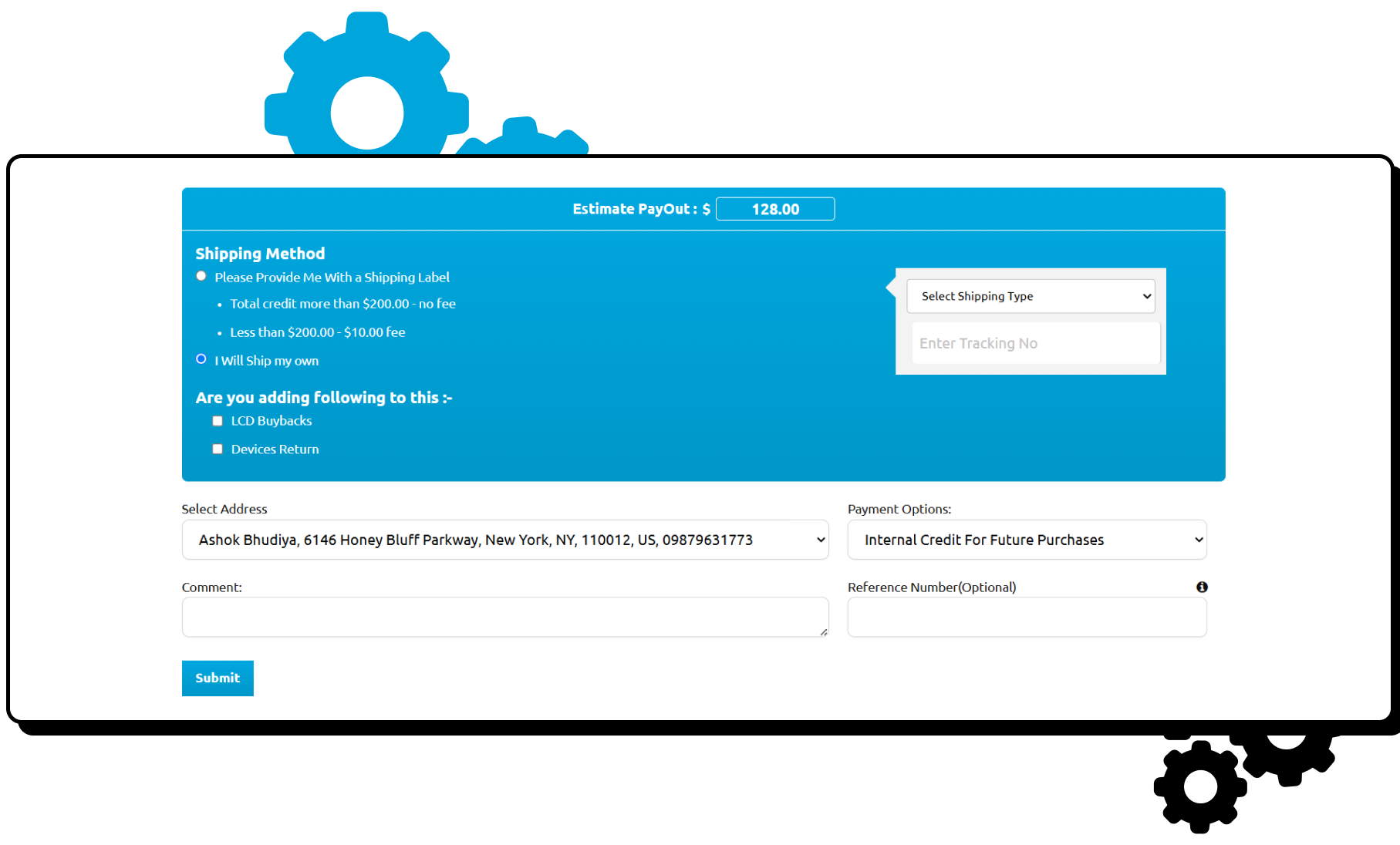
In the next section, labeled "Shipping Method", you’ll have two choices:
Option 1: Please Provide Me With a Shipping Label
- Free for returns over $200
- $10 fee for returns under $200
This is the easiest option as Parts4Cells will email you a prepaid label.
Option 2: I Will Ship My Own
- You can generate your own label using your preferred shipping carrier (UPS, FedEx, USPS, etc.).
- You must enter the tracking number and carrier in the next step.
Choose the option that best suits you. If you select “I Will Ship My Own,” additional tracking fields will become active.
Step 5: Select Address & Shipping Type
Select Return Address
Your saved address will automatically appear here. Confirm it’s correct. If not, update it in “My Profile > Manage Addresses.”
Select Shipping Type
If you're shipping your own, you’ll see a dropdown menu to select the shipping carrier (e.g., UPS, FedEx) and a field to enter your Tracking Number.
Payment Options
Choose how you want to receive your return credit:
- Internal Credit For Future Purchases (store credit)
- Refund to Original Payment Method (if available)
Step 6: Choose What You’re Returning
Below the shipping method section, you’ll see two options:
- LCD Buybacks
- Devices Return
Tick the appropriate checkbox depending on what kind of item you're sending back. You can select both if your return includes multiple categories.
This helps Parts4Cells categorize your return and speed up the processing time.
Step 7: Submit Your Request
Once all the details are filled out:
- Double-check the item(s)
- Confirm address and shipping type
- Choose payment method
Then click Submit to complete your return request.
If you choose the label from Parts4Cells, it will be available for download directly from the Shipping Label Info section. Print the label, pack your items securely, and drop them at the appropriate shipping center.
Step 8: Track & Manage Your Returns (RMA Reports Table)
Once submitted, your return request moves into the Shipping & Label Information section.
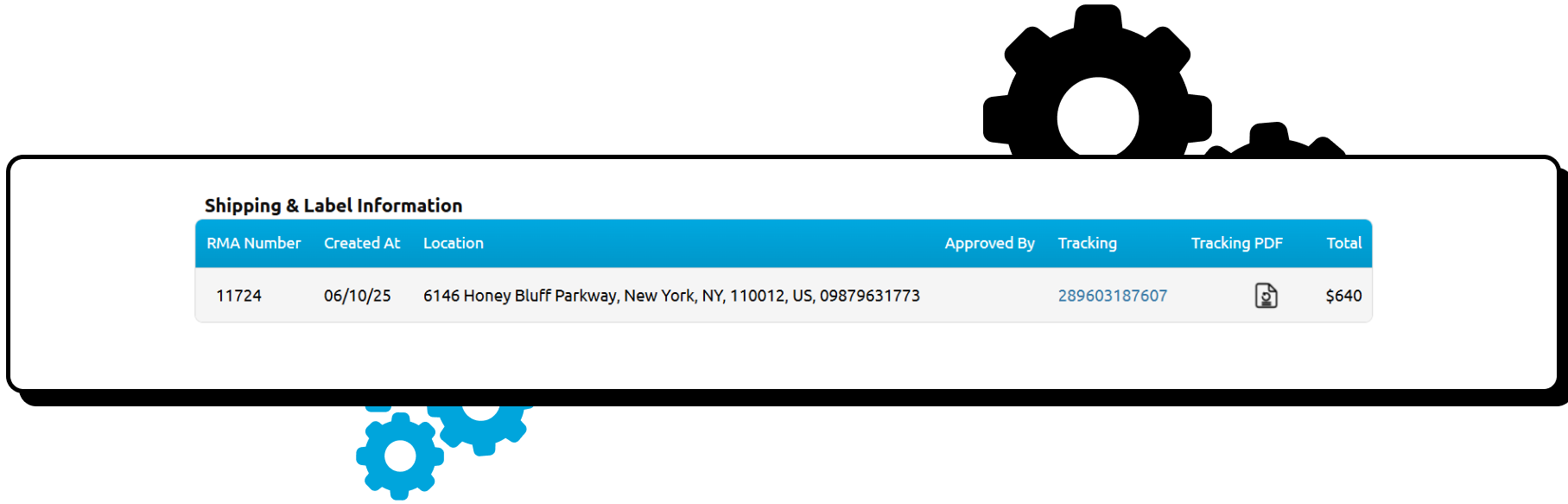
Here, you can:
- Download the Tracking PDF
- Pack your item securely
- Attach the shipping label and drop it off for delivery
Once the product is received and approved by the admin team, your return request will move to the RMA Reports table for final processing.

To simplify, here’s what each section is for:
Recap: Two Main Tables You’ll Use |
|
|---|---|
|
Section |
Purpose |
|
Add Item to Start Product Returns |
Begin a new return request by entering item details |
|
RMA Reports |
View progress, payouts, and history of all past returns |
Tips for a Smooth Return Process
- Pack Securely: Use bubble wrap or original packaging if possible.
- Take Photos: Take clear photos before shipping in case of transit damage.
- Track Everything: Save the tracking number or use the dashboard to monitor updates.
- Act Quickly: Try to request and ship returns within the eligible time frame (check the return policy).
Final Step: Submit & Track Your Return
Once everything is filled out, submit your return request. If you opted for Parts4Cells to provide a shipping label, you’ll receive it shortly. You can track the return status anytime under your RMA Reports tab.
Need help? Reach out to our support team or use the Live Chat on the website.
Make every return easy with Parts4Cells!
Have feedback on the process? Let us know—we're always improving based on your input!